Maestro Download

Maestro · Desktop editor for macOS

Where pixels and paths meet.

Maestro opens your PSDs with every layer and your AI, SVG and EPS files with every path, in one Mac app, with AI that fills and expands your canvas.

01 · Files

Open anything. Keep everything.

PSDs open with their layers, groups, masks and artboards and save back as PSD. Illustrator files open in the vector workspace and save as .ai. SVG paths stay paths, old EPS logos open, and a PDF page opens as an image or as editable vectors.

02 · Two interfaces

Pixels, meet paths.

Images and PSDs open in the photo interface. AI, SVG and EPS open in the vector interface. Both live as tabs in one window, and the menu bar follows whichever you are in.

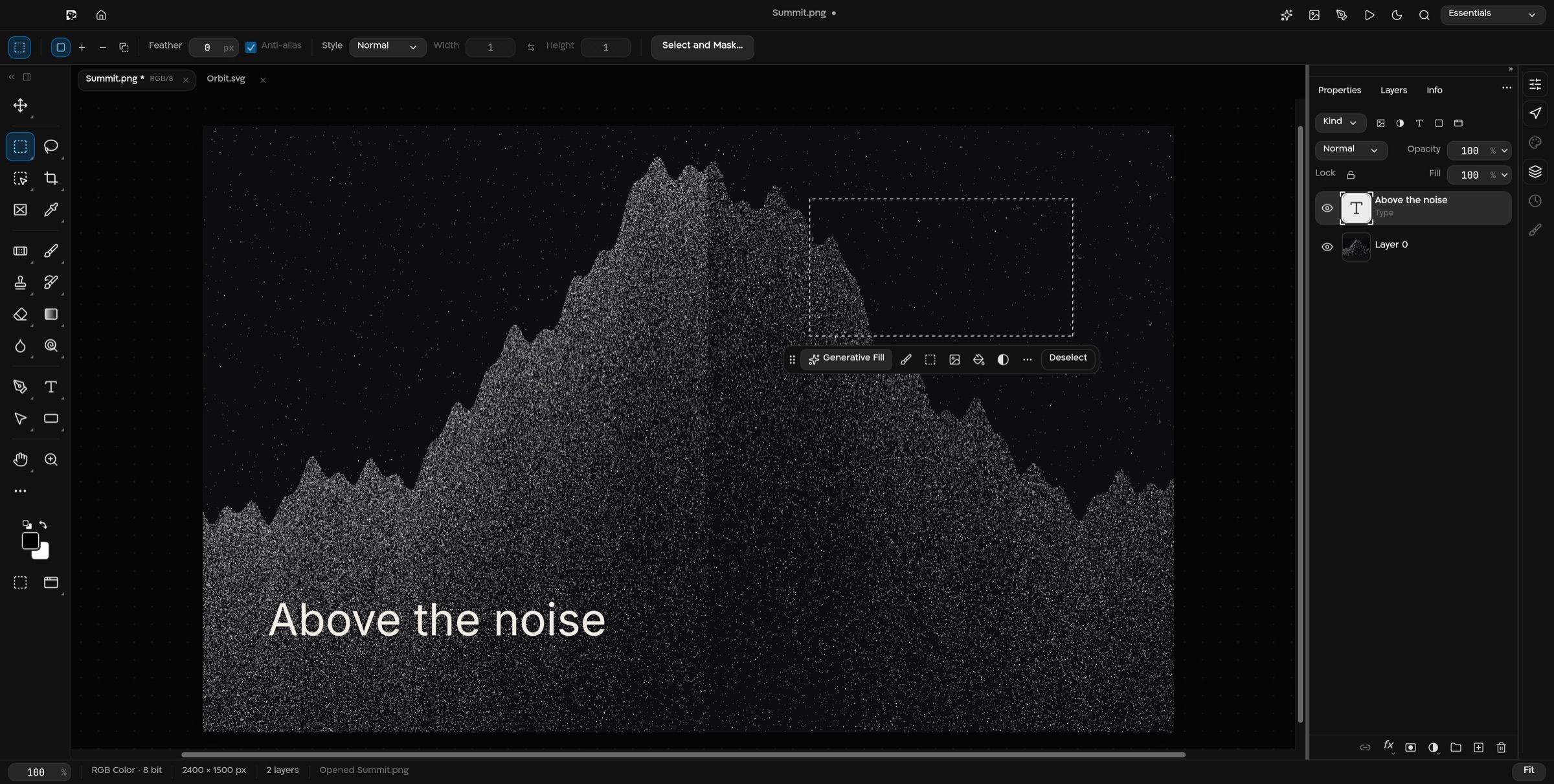
Maestro photo interface with a grain mountain image, a selection and the Generative Fill bar
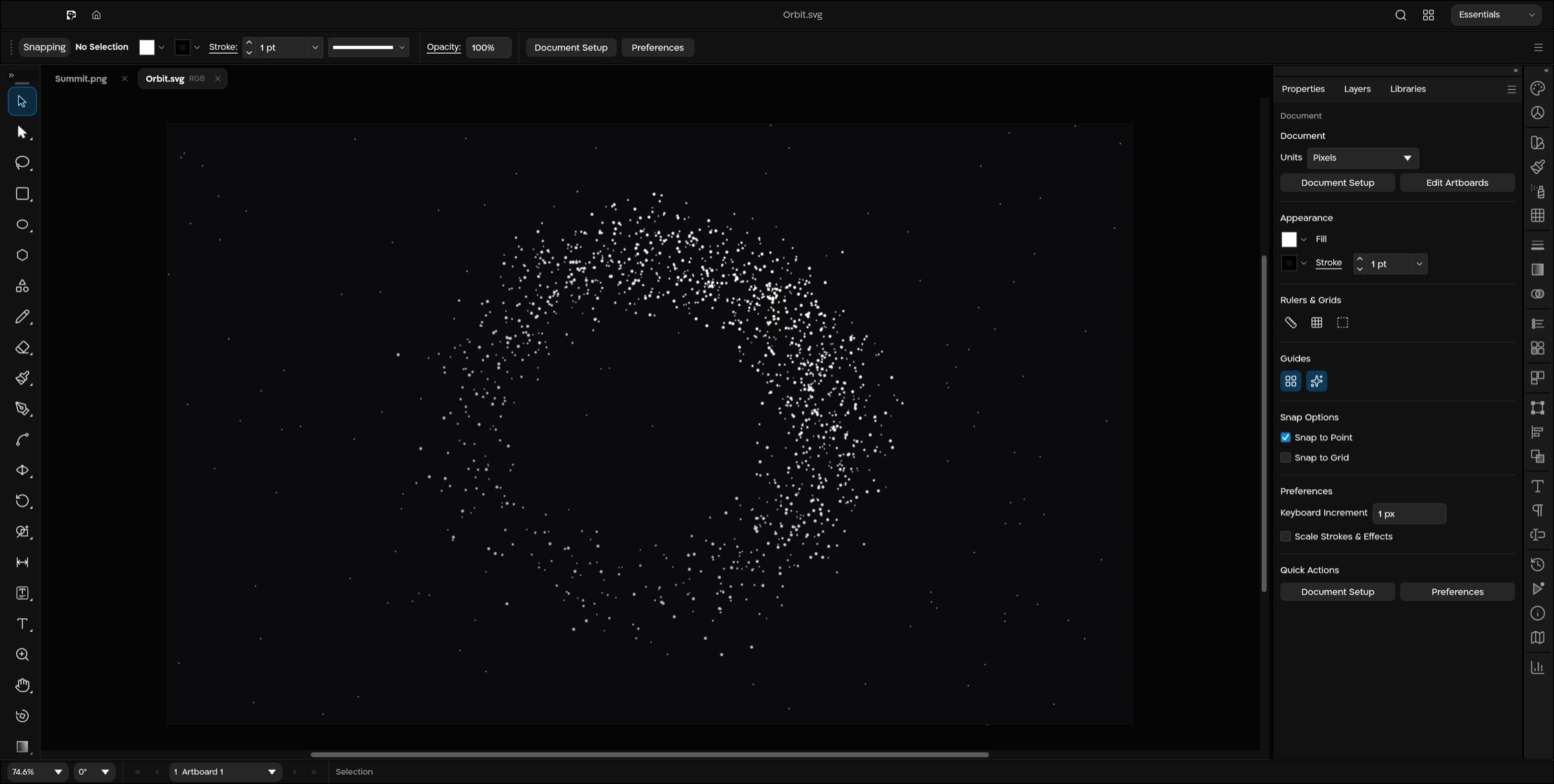
Maestro vector interface with an SVG ring of points on an artboard

Photo interface

Replaces Photoshop.

For photos, retouching and PSD files. Layers, masks, adjustments, smart objects and type you can still edit, and your PSD saves back with every layer in place.

  • Layers, groups, masks and blend modes
  • Adjustments and smart objects
  • Editable type, right to left too
  • PSD in, PSD out

Vector interface

Replaces Illustrator.

For logos, icons and illustration. Pen and paths, artboards, appearance and pathfinder. AI, SVG and EPS files open here and save as .ai.

  • Pen, paths and pathfinder
  • Artboards and appearance
  • AI, SVG, EPS and PDF
  • Saves as .ai

Between them

One window, one clipboard.

Copy art in the vector interface and paste it as a layer, at full size. Copied type keeps its font. Both live as tabs in one window, and the menu bar follows whichever you are in.

Watch

See how it's built.

03 · The app

Every tool where your hands expect it.

  1. Selection bar

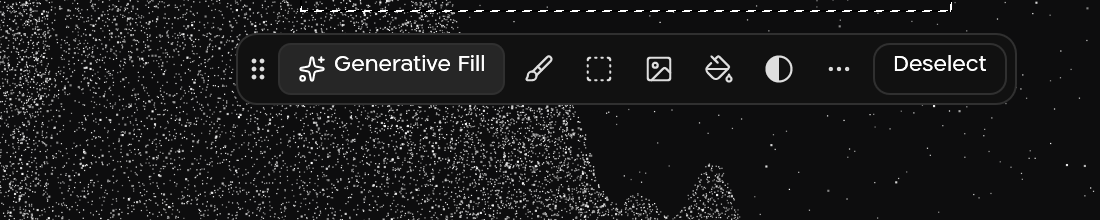
    Draw a selection and the next step appears under it: Generative Fill, Select and Mask, Fill, Invert.

    1
    The selection bar: Generative Fill, brush, selection, image, fill, invert, more and Deselect
  2. Move bar

    Click a layer and Properties, Transform, Duplicate, Layer Style, Hide and Lock are right there.

    2
  3. Layers

    Groups, masks, blend modes and type you can still edit.

    3
  4. Right to left

    Hebrew and Arabic type set right to left, file names included.

    4
Maestro photo interface: tools on the left, a selection with the Generative Fill bar on the canvas, Layers on the right
1 2 3 4
The selection bar: Generative Fill, brush, selection, image, fill, invert, more and Deselect
Selection bar · up close

04 · Maestro AI

Go past the edge. The mountain goes on.

Drag a selection or the crop frame beyond the canvas and press Generative Expand. Select an area inside and press Generative Fill. The result lands on its own layer, so your pixels stay untouched.

Generative Expand · one credit

05 · Download

Maestro is free.

Download the full editor for your Mac at no cost. Pay only if you want Maestro AI credits.

06 · Credits

One credit. One image.

Generative Fill and Generative Expand run on credits. A failed generation gives its credit back.

Monthly

Best value

$15 / month

150 generations every month

Renews monthly. Cancel any time.

Start monthly

100 credits

$17 once

100 generations

No subscription. Credits don't expire.

Buy 100

30 credits

$6 once

30 generations

A top-up when the month runs out.

Buy 30

Your move.

Maestro for macOS. Open your next PSD in it.

Download for macOS